> For the complete documentation index, see [llms.txt](https://docs.vntranslator.com/llms.txt). Markdown versions of documentation pages are available by appending `.md` to page URLs; this page is available as [Markdown](https://docs.vntranslator.com/user-guide/autotrans/interface-overview.md).
# Interface Overview
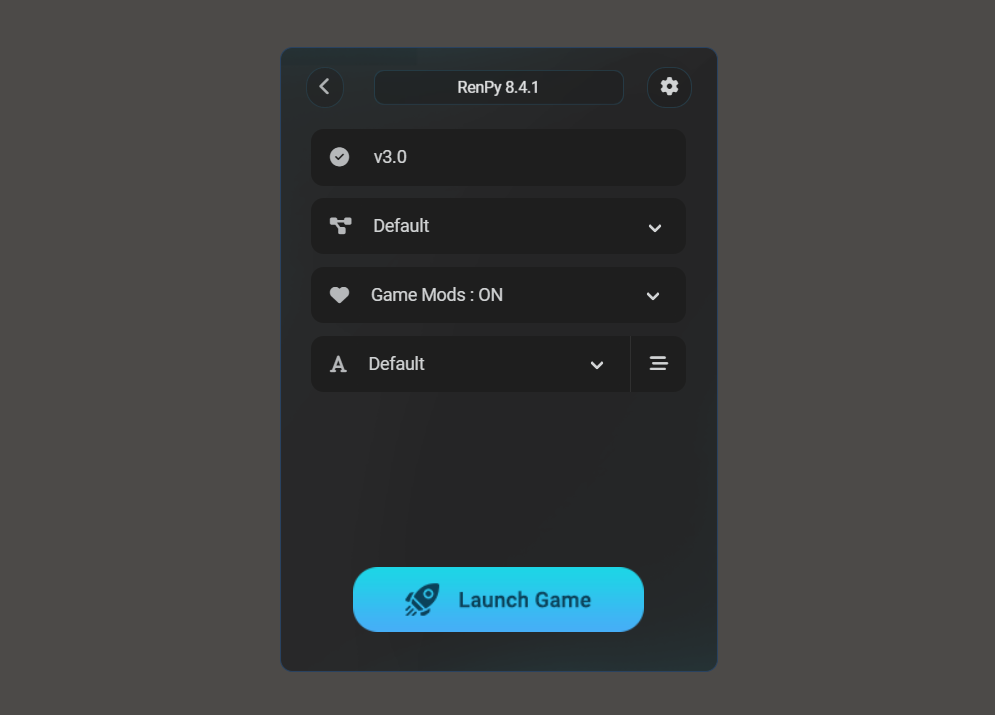
## Pre-Launch Settings
Configure AutoTrans before launching the game. These settings determine how AutoTrans will behave during gameplay.
#### Translation Mode
Select how AutoTrans processes and displays translations.\
[View all available translation modes →](/user-guide/autotrans/translation-mode.md)
#### Game Mods
Enable or disable game modifications that enhance AutoTrans functionality.
[Learn more about available mods →](/user-guide/autotrans/mods.md)
#### Game Font
Change the font displayed in the game to improve readability of translated text.
[See how to configure fonts →](/user-guide/autotrans/font-replacement.md)
***
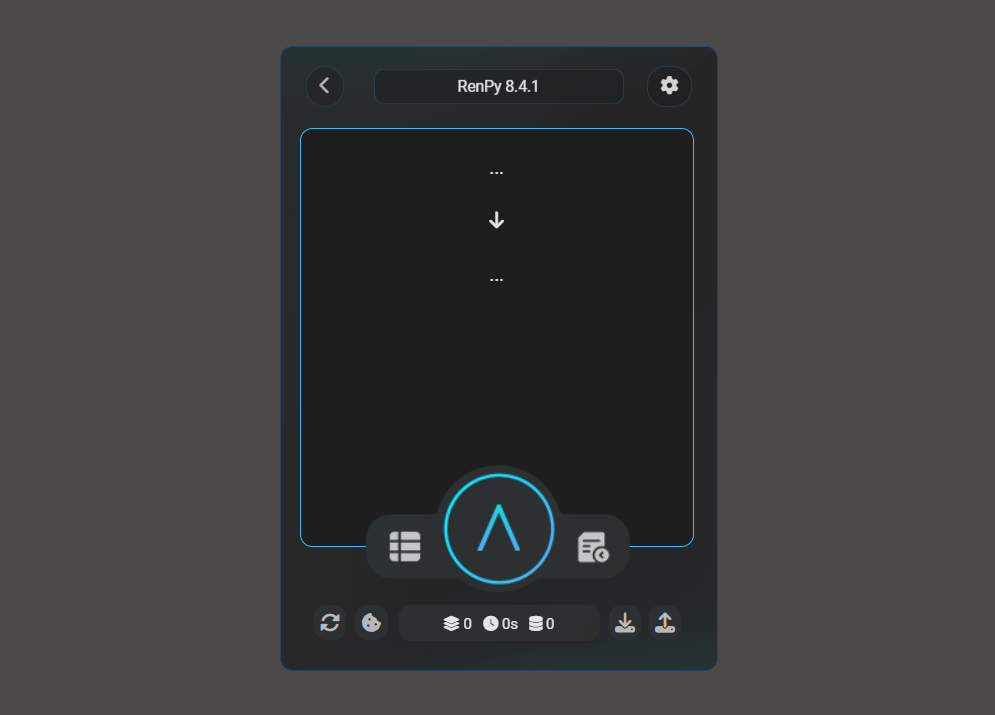
## In-Game Controls
Access AutoTrans features while the game is running.
#### Translation Editor
Open the built-in editor to view, modify, or correct translations in real-time.
#### Translation Toggle
Enable or disable translations during gameplay.
#### Extract & Translate
Access the extraction and translation workflow for batch processing game text.
[Learn about Extract & Translate →](/user-guide/autotrans/extract-and-translate.md)
#### Restart MT (Machine Translation)
Restart the machine translation engine if it becomes unresponsive or produces errors.
**Use when:** Translation stops working or returns errors.
#### Clear Cookies
Clear cookies in the virtual browser window used for web-based translation services.
**Use when:** Translation stops working or returns errors.
#### Import TM (Translation Memory)
Load previously saved translations to use in the current session.
#### Export TM (Translation Memory)
Save current translations for reuse in future sessions.